PDF to Markdown: Free Tool, Python & CLI Guide
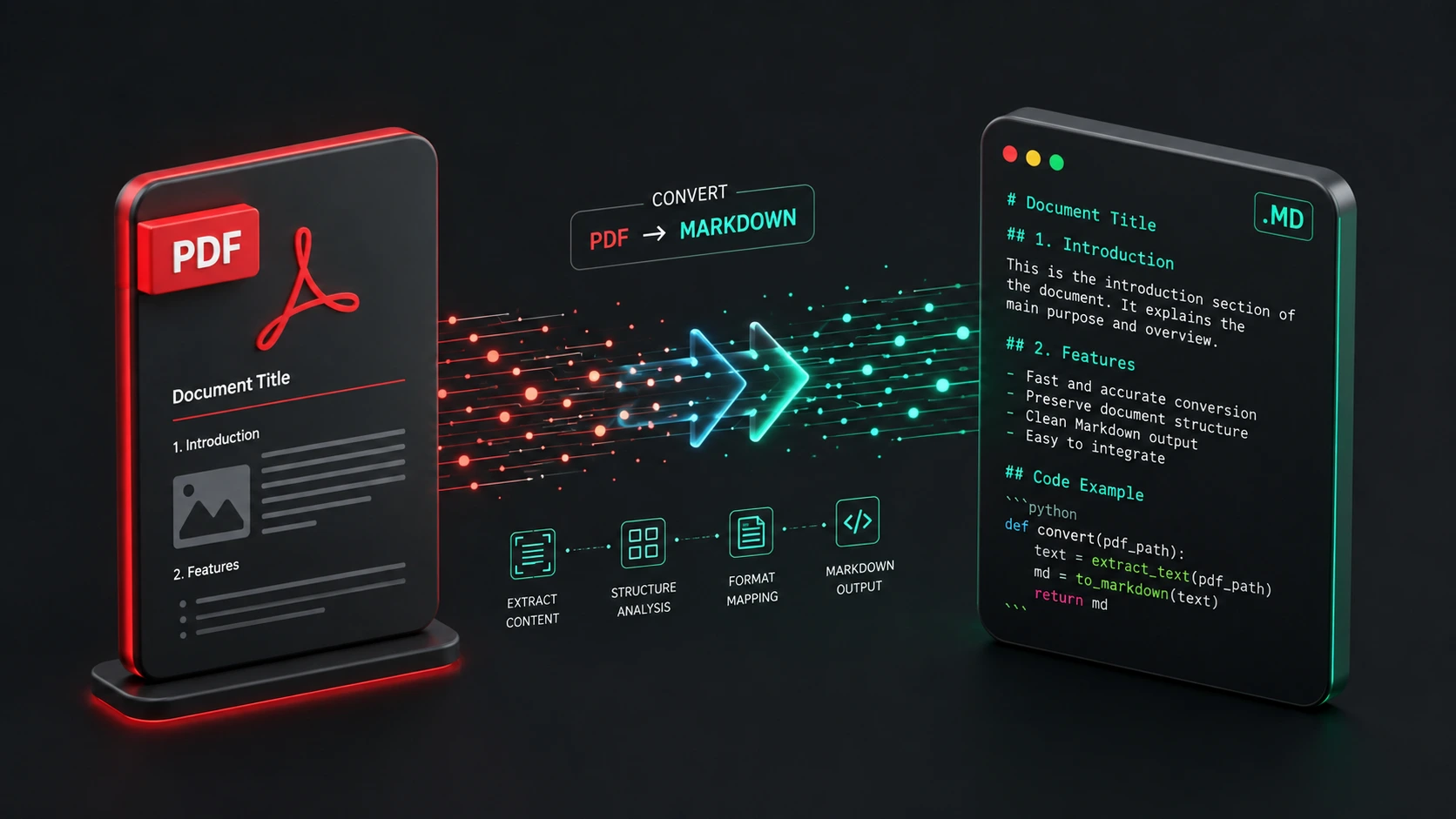
PDF to Markdown: The Ultimate Guide (Free Online Tools, Python & AI)
Written by Alex Chen, Lead Document Systems Engineer, specializing in PDF layout extraction and LLM data preparation pipelines.
PDFs are great at looking the same everywhere and terrible at almost everything else. Try to paste one into Obsidian and you get a wall of broken line breaks. Feed one into a RAG pipeline and your embeddings choke on headers that got flattened into body text. Markdown fixes both problems: it's plain text, it's diffable in Git, and it's the format most LLMs actually want to read.
That gap — rigid PDF in, clean structured text out — is exactly what this guide covers, from the fastest browser-based option to fully scripted Python pipelines and the newest layout-aware parsers.
Quick Recommendation If you just need a file converted right now, skip to MD-Convert. It's a free, browser-based PDF to Markdown converter — no installs, no sign-up, and nothing leaves your device since conversion happens client-side.
Why Convert PDF to Markdown?
PDF was designed for print fidelity: fixed layout, fixed fonts, fixed page breaks. That's useful for contracts and invoices. It's a liability for notes, documentation, and anything you plan to edit, version, or feed to a model.
Markdown solves the problems PDF creates:
- Editability — plain text you can edit in any editor, no proprietary software required.
- Note-app integration — Obsidian, Notion, and Logseq all treat
.mdas a first-class citizen. - Version control — Markdown diffs cleanly in Git; PDF diffs are useless binary noise.
- Lower token costs for AI/LLM pipelines — stripped of layout cruft, a Markdown file typically has a smaller, cleaner token footprint than the equivalent PDF text extraction, which matters directly for RAG ingestion costs.
| Factor | Markdown | |
|---|---|---|
| Editability | Locked layout, needs specialized tools | Plain text, edit anywhere |
| AI/RAG readiness | Noisy extraction, broken structure | Clean, chunkable, structure-preserving |
| File size | Larger (fonts, layout data) | Small, text-only |
| Compatibility | Universal for viewing | Universal for editing, Git, static sites |
Not sure which method fits your file? If your PDF is a scan, or its value is in its tables, start with our decision guide: PDF to Markdown: which method should you use? It compares browser extraction, server OCR, Pandoc and LLM vision APIs on privacy, table fidelity and cost.
Method 1: The Fastest Way — Free Online PDF to Markdown Converter
For a one-off conversion, or for someone who just wants a clean .md file without touching a terminal, an online converter is the path of least resistance.
MD-Convert is built specifically for this job. A few reasons it's the go-to option:
- No registration — open the page, drop a file, done.
- Client-side processing — conversion runs in your browser, so your document isn't uploaded to a third-party server, which matters if you're working with anything sensitive.
- Structure-aware output — headers, ordered and unordered lists, bold/italic text, and basic tables are preserved as proper Markdown syntax instead of collapsing into flat paragraphs.
- Free — no paywall, no per-file limits for typical use.
How to use it:
- Upload your PDF. Drag it into the browser window or click to select the file.
- Convert. MD-Convert parses the document structure and maps it to Markdown syntax.
- Download your
.mdfile. Drop it straight into your Obsidian vault, Notion import, or repo.
For a handful of documents, this is genuinely faster than writing or running a script.
A note on scope: Like all browser-based, zero-server-upload tools, MD-Convert extracts direct digital text layers with 100% client-side privacy. For scanned PDFs (pure image scans with no embedded text), it can't recover text that isn't there — you'll need the local Python OCR pipelines (Marker or Tesseract) covered further down.
Method 2: For Developers — Convert PDF to Markdown Using Python
Once you're converting more than a few files, scripting it makes more sense. A few libraries cover most needs, each with a different sweet spot.
Option A: pymupdf4llm (best for RAG/LLM prep)
Part of the PyMuPDF project, built specifically to produce clean Markdown for downstream LLM use, including table detection.
bash
pip install pymupdf4llm
python
import pymupdf4llm

md_text = pymupdf4llm.to_markdown("document.pdf")

with open("document.md", "w", encoding="utf-8") as f:
    f.write(md_text)
Option B: pdfplumber (best for fine-grained control)
pdfplumber is better suited when you need to inspect layout, extract tables separately, or handle irregular documents.
bash
pip install pdfplumber
python
import pdfplumber

output = []

with pdfplumber.open("document.pdf") as pdf:
    for page in pdf.pages:
        text = page.extract_text() or ""
        output.append(text)

        for table in page.extract_tables():
            header = table[0]
            rows = table[1:]
            output.append("| " + " | ".join(header) + " |")
            output.append("|" + "---|" * len(header))
            for row in rows:
                output.append("| " + " | ".join(str(c) if c else "" for c in row) + " |")

with open("document.md", "w", encoding="utf-8") as f:
    f.write("\n\n".join(output))
Option C: markitdown (best for mixed-format pipelines)
Microsoft's markitdown is a lighter-weight, general-purpose converter. It isn't PDF-specialized the way pymupdf4llm is, but it's a strong pick when the same pipeline also needs to handle Word docs, PowerPoint decks, or spreadsheets alongside PDFs — one library instead of four.
bash
pip install "markitdown[all]"
python
from markitdown import MarkItDown

md = MarkItDown()
result = md.convert("document.pdf")

with open("document.md", "w", encoding="utf-8") as f:
    f.write(result.text_content)
Batch-converting a folder
python
import pymupdf4llm
from pathlib import Path

input_dir = Path("pdfs")
output_dir = Path("markdown")
output_dir.mkdir(exist_ok=True)

for pdf_path in input_dir.glob("*.pdf"):
    md = pymupdf4llm.to_markdown(str(pdf_path))
    (output_dir / f"{pdf_path.stem}.md").write_text(md, encoding="utf-8")
Point this at a folder of research papers, meeting notes, or documentation exports and walk away — it handles the rest.
Method 3: Command-Line & Open-Source Tools
If Python isn't your workflow, a few CLI tools handle PDF-to-Markdown conversion without writing any code.
- Pandoc — the universal document converter. It works best when the PDF originated as a text-based document (not scanned):
bash
pandoc document.pdf -o document.md
Pandoc's PDF support is more limited than its other format conversions, so results vary depending on how the PDF was generated.
- Poppler's
pdftotext— extracts raw text, which you then clean up manually or pipe into a formatting script:
bash
pdftotext -layout document.pdf document.txt
- Marker — an open-source, ML-based converter built specifically for PDF-to-Markdown, with stronger handling of multi-column layouts and academic papers:
bash
  pip install marker-pdf
  marker_single document.pdf --output_dir ./output
- MinerU — a newer, layout-aware parser from OpenDataLab built for exactly the documents that break simpler tools: dense academic papers with LaTeX-style formulas, multi-column layouts, and nested tables. It converts formulas to LaTeX notation and preserves reading order across columns:
bash
  pip install "mineru[core]"
  mineru -p document.pdf -o ./output
For quick one-liners, Pandoc is fine. For layout-heavy academic papers with formulas, MinerU currently produces the most structurally faithful output of the open-source options; Marker is a lighter-weight middle ground for general multi-column documents.
Handling Complex PDFs (Tables, Images & OCR)
Plain text extraction breaks down fast once a PDF has tables, embedded images, or is a scanned document with no text layer at all.
Case Study: A Multi-Element PDF, Converted
To make the failure points concrete, here's a single source page containing a heading, a data table, a blockquote, and an inline math formula — the kind of mixed layout that trips up naive extractors.
Source PDF layout:
Quarterly Efficiency Report

                Q1        Q2        Q3
Throughput      420       465       510
Error Rate      2.1%      1.8%      1.4%

“Improving column flow reduced re-processing
time by nearly a third.” — Ops Team

The efficiency coefficient is defined as η = P_out / P_in.
Markdown output (via pymupdf4llm):
markdown
## Quarterly Efficiency Report

|  | Q1 | Q2 | Q3 |
|---|---|---|---|
| Throughput | 420 | 465 | 510 |
| Error Rate | 2.1% | 1.8% | 1.4% |

> "Improving column flow reduced re-processing time by nearly a third." — Ops Team

The efficiency coefficient is defined as η = P_out / P_in.
Fidelity & edge-case notes:
- Merged cells: if the original table had a merged header spanning multiple columns, most extractors —
pymupdf4llmincluded — flatten it into a repeated or blank cell rather than reconstructing the merge. Plan to hand-check merged headers. - Ligature characters: PDFs frequently encode
fi,fl, andffias single glyphs for typographic reasons. Weaker extractors emit these as blank spaces or stray Unicode private-use characters instead of the correct letters — check for missing letters in words like "efficiency" or "workflow" after conversion. - Column flow: the blockquote and formula in this example sit in a single column, so reading order is trivial. In a genuine two-column layout, simpler extractors read straight across both columns line-by-line, interleaving unrelated sentences. MinerU and Marker both preserve per-column reading order;
pdftotextwithout-layoutgenerally does not. - Math formulas:
η = P_out / P_insurvived here as plain Unicode because it's simple. Denser LaTeX-style equations typically need a formula-aware parser like MinerU to come out as proper LaTeX rather than mangled symbol soup.
Tables, Images & OCR
Tables: Markdown's pipe syntax is the target format:
markdown
| Feature | Free Tier | Pro Tier |
|---------|-----------|----------|
| File size limit | 10 MB | 100 MB |
| Batch conversion | No | Yes |
pymupdf4llm, MinerU, and Marker all attempt automatic table detection. For anything with merged cells or nested structure, expect to hand-correct the output — no library gets this perfect yet.
Images: Extract embedded images separately rather than trying to inline them as base64:
python
import fitz  # PyMuPDF

doc = fitz.open("document.pdf")
for page_num, page in enumerate(doc):
    for img_index, img in enumerate(page.get_images(full=True)):
        xref = img[0]
        base_image = doc.extract_image(xref)
        with open(f"page{page_num}_img{img_index}.{base_image['ext']}", "wb") as f:
            f.write(base_image["image"])
Reference the saved files in your Markdown with standard  syntax.
Scanned PDFs (OCR): If page.extract_text() returns nothing, the PDF is likely image-only. Run OCR first with Tesseract:
bash
pip install pytesseract pdf2image
python
from pdf2image import convert_from_path
import pytesseract

pages = convert_from_path("scanned.pdf", dpi=300)
text = "\n\n".join(pytesseract.image_to_string(page) for page in pages)

with open("scanned.md", "w", encoding="utf-8") as f:
    f.write(text)
OCR output needs more manual cleanup than native text extraction — expect to fix heading levels and reflow paragraphs by hand. Marker also bundles OCR internally as a fallback when a page has no text layer, which saves a separate step for mixed digital/scanned documents.
Reverse Workflow: Converting Markdown Back to PDF, Word & HTML
Conversion isn't always one-directional. Once notes or documentation live in Markdown, you'll eventually need to hand someone a polished PDF, a Word doc for tracked changes, or an HTML page for publishing — none of which read .md natively.
If you ever need to convert your Markdown files back to PDF, Word, or HTML, check out our comprehensive guide on converting MD files to PDF, Word, and HTML.
Frequently Asked Questions
What is the best free PDF to Markdown converter online?
MD-Convert is the most straightforward option: it's free, requires no account, and converts entirely in your browser so the file never leaves your device. For occasional or one-off conversions, it beats installing and configuring a Python library.
Can I convert scanned PDFs to Markdown?
Yes, but scanned PDFs need OCR first since there's no embedded text layer to extract. Tools like Tesseract (via pytesseract) or Marker's built-in OCR fallback can read the text out of scanned pages before you format it as Markdown. Expect more manual cleanup than with native, text-based PDFs.
How do I import converted Markdown into Obsidian or Notion?
For Obsidian, drop the .md file directly into your vault folder — it will appear immediately in the file explorer. For Notion, use Import → Markdown & CSV from the sidebar; Notion will parse headers, lists, and basic formatting automatically into native blocks.
Is my document secure when using online PDF converters?
It depends entirely on how the tool processes your file. Server-side converters upload your document before converting it, which means the file passes through someone else's infrastructure. Client-side tools like MD-Convert process the file in your browser, so nothing is transmitted anywhere — a meaningful difference if you're working with confidential documents.
Which tool should I use for academic papers with formulas and multi-column layouts?
Of the options here, MinerU currently handles this case best — it preserves cross-column reading order and converts formulas to LaTeX rather than plain text. Marker is a solid lighter-weight alternative; general-purpose tools like pdfplumber and pandoc tend to struggle once a paper has genuine multi-column flow.
Conclusion
Which method makes sense depends on volume and document complexity. For a single file, or for someone who doesn't want to open a terminal, MD-Convert gets you a clean .md file in under a minute. For recurring or bulk conversions of straightforward documents, pymupdf4llm or markitdown in a Python script will save far more time than doing it by hand. For dense academic PDFs with tables and formulas, step up to MinerU or Marker.
Either way, the destination is worth it: Markdown is lighter, more portable, and dramatically easier for both humans and AI models to work with than the PDF you started with.
Ready to convert your first file? Try MD-Convert now — free, fast, and nothing leaves your browser.